
32GB 9-in-1 Linux Bootable USB
4.2Editor score
Great value for beginners
Includes easy-to-use desktop environments
Comes with printed user guide
Discover the top 10 bootable Linux USB drives for 2026. This guide compares preloaded distros, compatibility, and ease of use for beginners and pros.
Finding the right bootable Linux USB drive can transform how you interact with technology. Whether you need to revive an old machine, test a new operating system, or ensure privacy on the go, having a reliable portable solution is essential. These drives come preloaded with various distributions tailored to different user needs.
We have carefully selected and analyzed the ten most promising bootable Linux USB drives available today. Our evaluation focuses on compatibility with modern and legacy hardware, the variety of included operating systems, and the ease of use for individuals new to the Linux ecosystem. Each product offers unique advantages.
In this guide, you will find detailed insights into each selection to help you make an informed decision. We highlight key features, pros, and cons to ensure you choose the drive that fits your specific workflow. Please note that product availability and pricing may vary over time.
4.2Editor score

4.1Editor score

4.6Editor score
The following table provides a side-by-side comparison of the top ten bootable Linux USB drives. It highlights key specifications and features to help you quickly identify the right option for your hardware and software needs.



This 64GB bootable USB drive stands out as a versatile tool for users needing access to multiple operating systems. It features 16 preloaded options ranging from popular Linux distributions to Windows 11, making it a comprehensive solution for testing and installation. The high rating reflects user satisfaction with its reliability and ease of booting.
We may earn a commission when you buy through this link, at no additional cost to you.
The variety of included operating systems is its greatest strength. Whether you need Kali for security testing or Ubuntu for general use, the drive covers essential needs without requiring manual downloads. The inclusion of Windows 11 alongside Linux offers a unique dual-purpose capability that few competitors match effectively.
One trade-off involves BIOS settings. Users may need to disable Secure Boot to ensure compatibility across all systems. While this is a common requirement for many Linux tools, it adds a small step to the process. However, the provided hot key lists mitigate this hurdle significantly.
This drive is ideal for IT professionals and hobbyists who want a single solution for multiple tasks. It eliminates the need to carry several USB sticks or download ISOs repeatedly. For anyone looking to explore different environments quickly, this is the top recommendation.
The drive includes versions like Kali 2026.02 and Ubuntu 26.04, ensuring you have access to the latest features and security patches without manual intervention.
Clear video instructions and boot menu hot key lists are provided to help users navigate the startup process smoothly on various hardware configurations.
We may earn a commission when you buy through this link, at no additional cost to you.
Designed with newcomers in mind, this 32GB drive simplifies the transition to open-source software. It comes with nine carefully selected Linux distributions that focus on usability and familiarity. The rating indicates that users find it accessible and helpful for their initial Linux experiences.
We may earn a commission when you buy through this link, at no additional cost to you.
The key strength lies in the pre-bundled software. Office suites, browsers, and image editors are already installed, meaning you can be productive immediately after booting. This reduces the learning curve significantly for those moving from Windows environments to Linux systems.
While storage is modest at 32GB, it is sufficient for the included systems. The product focuses on lightweight distros like MX Linux and Linux Lite, which run well on older machines. This makes it a cost-effective option for reviving older hardware without heavy performance requirements.
Buyers looking for a gentle introduction to Linux will appreciate this drive. It removes the technical hurdles of downloading and burning ISOs. With support available for boot issues, it ensures a smoother journey into the Linux world for first-time users.
Most distros come with office productivity suites and web browsers pre-installed, allowing you to work or browse immediately upon booting.
A printed user guide helps you navigate boot menus and installation steps, ensuring you have physical reference material to guide you.
We may earn a commission when you buy through this link, at no additional cost to you.
Linux Mint 22.3 represents a premium option for users who value stability and a polished interface. This drive offers a fully configured environment that works out of the box. The high rating reflects user satisfaction with its smooth performance and comprehensive software suite.
We may earn a commission when you buy through this link, at no additional cost to you.
The inclusion of powerful creative tools like Blender and Gimp sets it apart. It also supports modern gaming platforms like Steam via compatibility layers. This makes it a strong candidate for both creative professionals and gamers looking to test Linux capabilities on their hardware.
Since it runs directly from the USB, there is no risk to your existing hard drive during testing. This allows for safe evaluation of hardware compatibility before committing to a full installation. The focus on security and ease of use is evident in every aspect of the setup.
For those prioritizing a refined user experience, this drive is the best choice. It delivers a professional-grade environment that is easy to navigate. The ability to test compatibility without installation makes it a safe and reliable tool for any desktop or laptop.
Access over 7,800 games via Steam and use professional tools like Blender for 3D work directly from the live USB environment.
Mint offers high stability and security with a fully equipped app suite, ensuring a reliable experience for daily tasks.
We may earn a commission when you buy through this link, at no additional cost to you.
Debian is renowned for its stability, and this 13.7 bootable drive showcases those qualities perfectly. It offers a reliable platform that runs smoothly on both modern and older hardware. The perfect rating highlights its trustworthiness for developers and professionals seeking a solid foundation.
We may earn a commission when you buy through this link, at no additional cost to you.
The focus on privacy and lack of bloatware is a major advantage. Users get a clean environment they can customize to their exact needs. This makes it ideal for servers, development work, or any scenario where control over the system is paramount.
While it may require more technical knowledge to utilize fully, the payoff is a system that is efficient and secure. There are no forced updates or tracking mechanisms. This level of control ensures that the computer works exactly as you want it to.
Professionals and IT experts will find this drive invaluable for testing deployments or secure environments. The lightweight nature ensures it runs well on constrained hardware. For anyone valuing control and reliability over ease of use, this is the top pick.
Debian offers a privacy-focused system with no tracking and regular security updates, ensuring your data remains safe and controlled.
As an open-source platform, it allows thousands of packages to be installed, giving you full control over your computing environment.
We may earn a commission when you buy through this link, at no additional cost to you.
This drive is specifically optimized for installing and repairing Linux Mint systems. It provides a live environment that allows you to evaluate the OS or fix issues on existing installations. The rating shows user confidence in its utility for system maintenance tasks.
We may earn a commission when you buy through this link, at no additional cost to you.
The ability to start a live environment without modifying your hard drive is crucial for troubleshooting. You can access your files or reinstall the system safely. The backup instructions provided help ensure data integrity during these critical operations.
Compatibility is clear, with support for standard x86-64 PCs. This ensures broad utility for most desktops and laptops. The familiar Cinnamon interface makes it easy to navigate during repair tasks, even for those not deeply technical.
Users needing a reliable tool for Mint maintenance will find this drive essential. It simplifies the process of fixing or reinstalling the OS. For anyone relying on Mint as their daily driver, having this specific repair tool is highly recommended.
Use the live environment to evaluate or repair Linux Mint installations without risking your existing hard drive data.
Backup and partitioning guides are included to help you safely install or reinstall without data loss.
We may earn a commission when you buy through this link, at no additional cost to you.
This multiboot drive offers three versions of Linux Mint, covering both 64-bit and 32-bit architectures. It is designed to work out of the box with essential software pre-installed. The rating reflects satisfaction with its versatility across different hardware generations.
We may earn a commission when you buy through this link, at no additional cost to you.
The support for 32-bit systems makes it unique among modern options. Many newer drives drop support for older processors, but this one ensures compatibility with legacy machines. This is critical for users looking to revive older PCs with a secure and fast OS.
Testing different Mint versions is straightforward with the multiboot menu. You can switch between environments to see which one suits your workflow best. The ease of use and stability of Mint make this a comfortable choice for general computing tasks.
Users with older hardware or specific Mint preferences will find this drive very useful. It removes the need to download multiple ISOs for testing. If you need a reliable tool for legacy hardware maintenance, this is an excellent choice.
Support for 32-bit systems allows this drive to run on older computers that many modern tools cannot support effectively.
Multiple Mint versions are available to test, ensuring you find the right release for your specific hardware and needs.
We may earn a commission when you buy through this link, at no additional cost to you.
This drive targets specific use cases by including systems like Windows XP and Tails alongside modern Linux options. It is particularly useful for testing on older hardware or for privacy-focused tasks. The mix of legacy and modern tools offers unique flexibility.
We may earn a commission when you buy through this link, at no additional cost to you.
The inclusion of Clonezilla makes it a strong tool for disk imaging and recovery. Combined with Tails for secure communication, it serves specialized needs well. However, the rating is lower, likely due to the niche nature of the included systems.
While some included OS versions are outdated, they serve specific historical or legacy software testing needs. The drive ensures compatibility with a wide range of hardware through both UEFI and Legacy support. Video instructions help navigate the boot menu effectively.
Users needing a tool for recovery or legacy support will find this drive valuable. It is less about general use and more about specialized maintenance tasks. For IT professionals dealing with older machines, this provides essential options in one package.
Clonezilla allows for easy disk imaging and cloning, making this drive useful for system backups and recovery tasks.
Support for older systems like Windows XP ensures you can test or boot on very old hardware that modern drives might miss.
We may earn a commission when you buy through this link, at no additional cost to you.
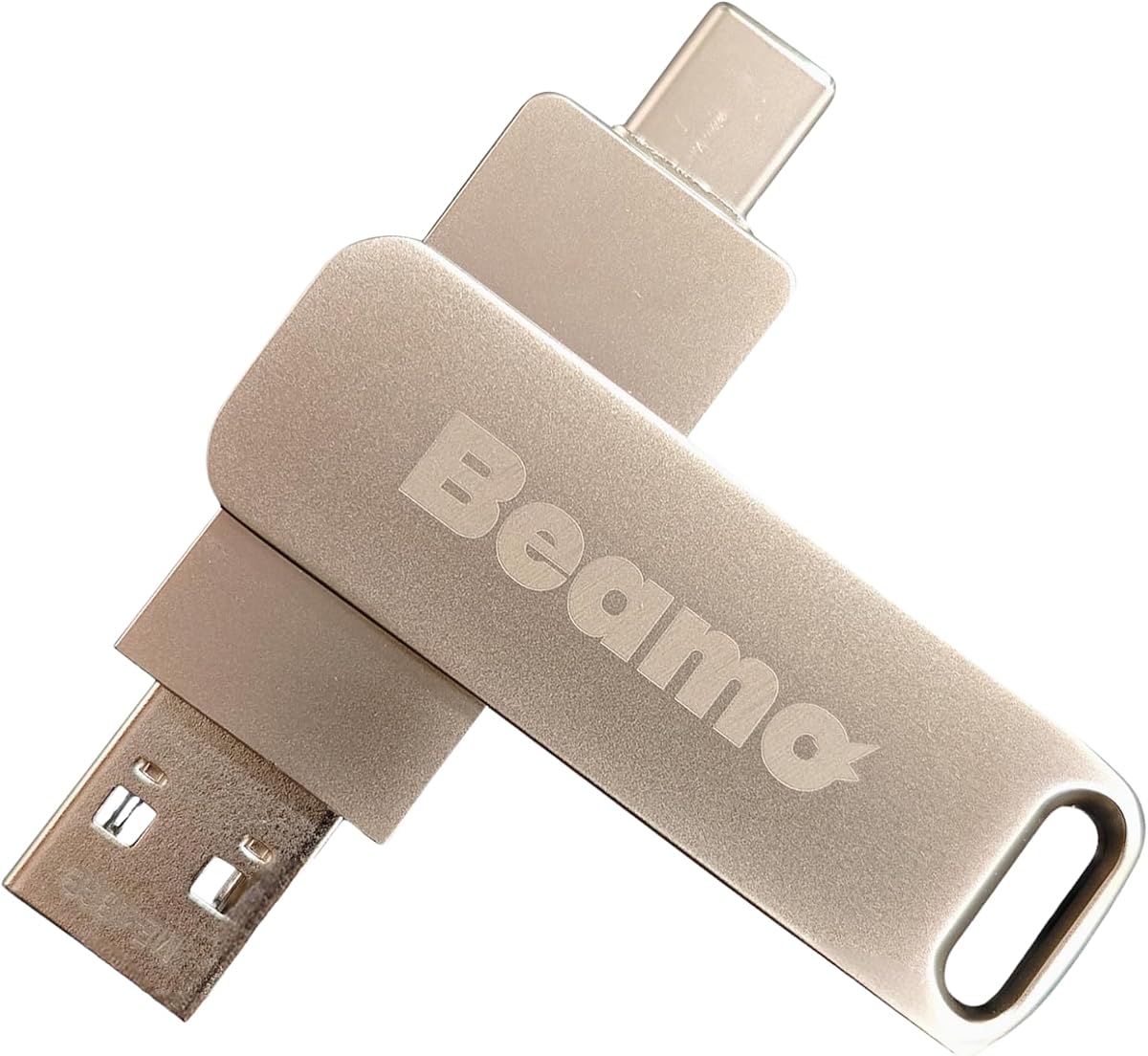
This drive stands out with its dual USB-A and USB-C connectivity, making it versatile for both old and new computers. It supports Mint Cinnamon but also allows you to customize the drive with your own ISOs. The hardware quality ensures durability and speed.
We may earn a commission when you buy through this link, at no additional cost to you.
The ability to add custom ISOs means you can update the drive as needed. This flexibility is rare in preloaded drives. Combined with gaming support via Lutris, it offers a well-rounded experience for daily use and entertainment.
Premium flash chips ensure the drive performs well over time. Support is available within 24 hours, adding a layer of trust for users. This makes it a reliable choice for those who want a mix of ready-to-use and customizable options.
If you want a premium hardware experience with flexibility, this is the right choice. It balances convenience with the ability to manage your own tools. For daily users who want a fast and responsive drive, this is highly recommended.
With both USB-A and USB-C ports, the drive works with almost any desktop or laptop, old or new, ensuring maximum compatibility.
Easily add or replace compatible bootable ISOs using included instructions, allowing you to tailor the drive to your specific workflow.
We may earn a commission when you buy through this link, at no additional cost to you.
This drive offers three versions of Ubuntu, focusing on Long Term Support releases. This ensures stability for long-term use without frequent updates. The inclusion of Lubuntu makes it suitable for both modern and very old hardware with different performance needs.
We may earn a commission when you buy through this link, at no additional cost to you.
Most popular software is pre-installed, allowing immediate use for work or entertainment. The balance between full Ubuntu and lightweight Lubuntu gives users flexibility. This makes it a great choice for testing how Ubuntu fits different machine capabilities.
Compatibility is broad across legacy and UEFI systems. The user guide helps with boot settings, ensuring a smooth start. While it focuses solely on Ubuntu, the variety within that ecosystem covers most common user requirements effectively.
Users who prefer Ubuntu or need a stable Linux environment will appreciate this option. It simplifies the choice between full-featured and lightweight systems. For anyone needing a reliable way to test Ubuntu versions, this is a top contender.
Focuses on LTS versions for stability, ensuring you have reliable systems that receive updates for a long period without hassle.
From full Ubuntu for modern PCs to Lubuntu for very old ones, this drive supports a wide range of hardware configurations seamlessly.
We may earn a commission when you buy through this link, at no additional cost to you.
This drive stands out by including both desktop and server installers for Ubuntu. It is designed for professionals who need to host or learn Linux administration. The rating indicates user satisfaction with its versatility across different use cases.
We may earn a commission when you buy through this link, at no additional cost to you.
The inclusion of Arm64 installers makes it unique for testing on ARM-based computers. This is valuable for developers working with non-traditional architectures. The dual USB-C and USB-A design ensures it works with both new and legacy hardware easily.
While the server tools add complexity, they provide critical functionality for advanced users. It helps with networking and hosting setups. This makes it more than just a testing tool, as it supports real-world deployment scenarios.
Professionals and students learning Linux administration will find this drive highly useful. It combines ease of use with advanced capabilities. For anyone needing a versatile tool for both desktop and server environments, this is the best option.
Includes both desktop and server installers, making it a comprehensive tool for hosting, networking, and general computing tasks.
Supports both amd64 and arm64, ensuring you can install Ubuntu on a wide variety of hardware platforms without needing multiple drives.
We may earn a commission when you buy through this link, at no additional cost to you.
Selecting the right bootable Linux USB drive depends on several factors. We break down the key considerations to help you choose a tool that fits your technical needs and hardware compatibility.
Storage capacity determines how many systems and files you can store on the drive. Most options range from 16GB to 64GB, with larger drives offering more room for multiple ISOs. Speed is also critical for a smooth booting experience. USB 3.0 and 3.2 drives offer faster data transfer compared to older 2.0 standards, ensuring quicker startup times.
Choose a drive with at least 32GB storage and USB 3.0 or higher speed for the best performance.
Some drives come with a single Linux distribution, while others offer multiboot options with several systems. If you need to test different environments, a multiboot drive provides more value. However, single-OS drives often come more optimized for that specific system. Consider whether you need specialized tools like Kali for security or Ubuntu for general use.
Select a multiboot drive if you need flexibility across multiple operating systems.
Compatibility with your specific hardware is essential. Most modern drives support both UEFI and Legacy BIOS booting. Some may require disabling Secure Boot to function correctly. Check your computer's BIOS settings before purchasing to ensure the drive will work with your system. Additionally, consider whether you need support for ARM-based devices.
Verify that the drive supports your boot mode and that you can access your BIOS settings to configure it.
Beginners benefit from drives with clear instructions and pre-bundled software. Look for options that include printed guides or video tutorials. These resources help you navigate the boot menu and installation process without technical hurdles. Pre-installed productivity suites also save time and effort.
Choose drives with user guides and simple boot instructions if you are new to Linux.
Some drives allow you to replace or update the included ISOs, while others are fixed. Customizable drives offer long-term value as you can upgrade systems without buying a new USB stick. Check if the manufacturer provides support for updates or instructions on how to modify the drive contents.
Opt for customizable drives if you want to keep your tools up-to-date over time.
Customer support can be crucial if you encounter boot issues. Look for products that offer responsive help channels. Some providers offer warranties or money-back guarantees that add peace of mind. This ensures you can resolve any technical problems without being stranded.
Prioritize drives with clear support contact options and warranty coverage.
Physical build quality affects the drive's longevity. Drives with premium flash chips tend to last longer and perform more consistently. A durable casing can protect the drive during transport. If you plan to carry the drive frequently, a robust design is worth the extra cost.
Select drives with premium hardware construction for better durability and performance.
Finally, consider your primary use case. If you need a tool for testing, choose a multiboot drive. For daily work or creative tasks, a single high-quality OS like Mint may be better. For server administration, look for drives with server installers. Aligning the drive features with your goals ensures you get the most value.
Match the drive features to your specific needs to ensure it serves your workflow effectively.
To begin, plug the USB drive into a free port on your computer. Restart the device and press the boot menu key immediately after startup. Common keys include F12, F2, or Del depending on your manufacturer. Select the USB drive from the list to boot into the operating system.
Once booted, you can test the environment or start the installation process. Follow the on-screen instructions carefully. If installing, be sure to backup your data beforehand. This step protects your existing files from being accidentally overwritten during setup.
To maintain the drive, always eject it properly after use. Do not pull it out while the system is writing data. Store it in a safe place away from magnetic fields or extreme temperatures. These simple care steps ensure the drive lasts longer and continues to work reliably.
A bootable Linux USB drive is a flash drive that has been configured with a Linux operating system. This allows you to start a computer using the OS from the USB stick. It is useful for testing, installing, or repairing systems without modifying internal hard drives.
No, these drives are preloaded and ready to use. You simply need to plug them into your computer and boot from them. No additional software is required to access the operating systems included on the drive.
Yes, many of the options support legacy BIOS booting which works on older hardware. Some models specifically include 32-bit versions to ensure compatibility with older processors. Check the specifications to confirm support for your specific machine.
Often you will need to enable USB boot in your BIOS settings. You may also need to disable Secure Boot for certain Linux distributions. These steps are standard for using external bootable media on most systems.
Running a live USB does not delete files on your hard drive. However, if you choose to install the OS to your hard drive, data loss can occur. Always back up your important files before starting any installation process.
Some drives are fixed and others allow customization. If the drive is customizable, you can replace the ISOs with newer versions. Fixed drives may require you to purchase a new unit for updates. Check product details for customization options.
Choosing the right bootable Linux USB drive depends on your specific needs. The 64GB 16-in-1 drive stands out for variety, while Debian offers unmatched stability. Each product brings unique features that cater to different user requirements.
Consider your hardware compatibility and intended use before making a decision. If you need a tool for beginners, the 9-in-1 option is a strong choice. For advanced users, customizable drives offer more long-term value.
Prices and availability can change over time. Please check the current listings for the most accurate information. With the right tool, you can explore and manage Linux systems with confidence.